




How to filter photos/videos (or any other media)
Forwading media
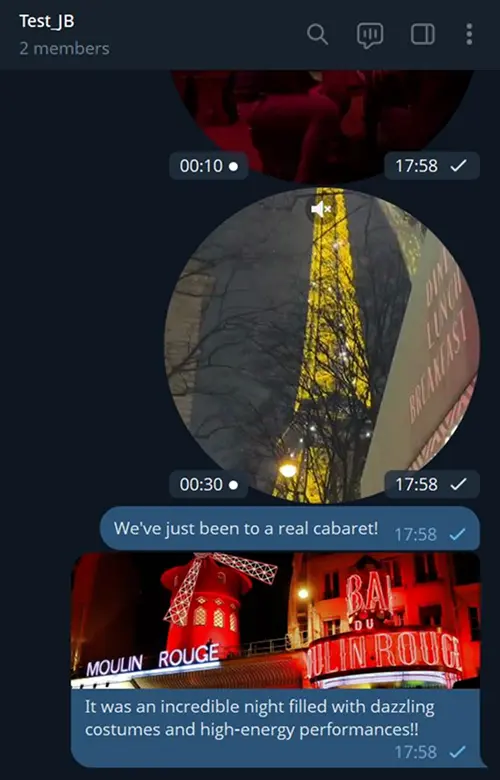
We’ll tell you how to remove messages with videos, GIFs or videonotes from forwarding, but leave messages with photos.
Please note: if you ONLY need to remove the image or video itself and leave the text captions, then use another guide.

Open your chat with Junction Bot and click on Menu.
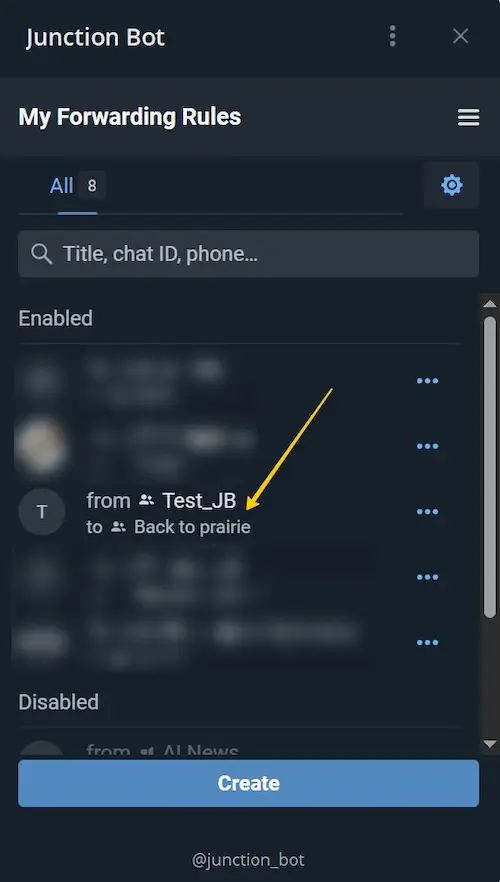
Choose one of the forwards in the list of your Forwarding rules.
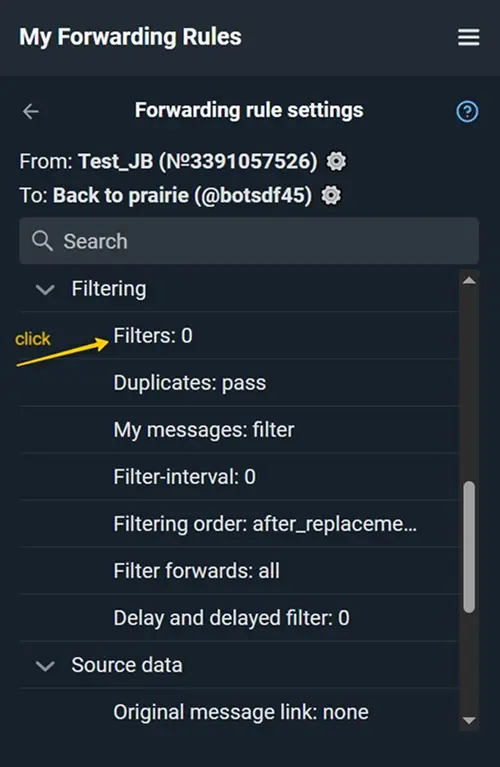
Find "Filters" in the "Filtering" section.
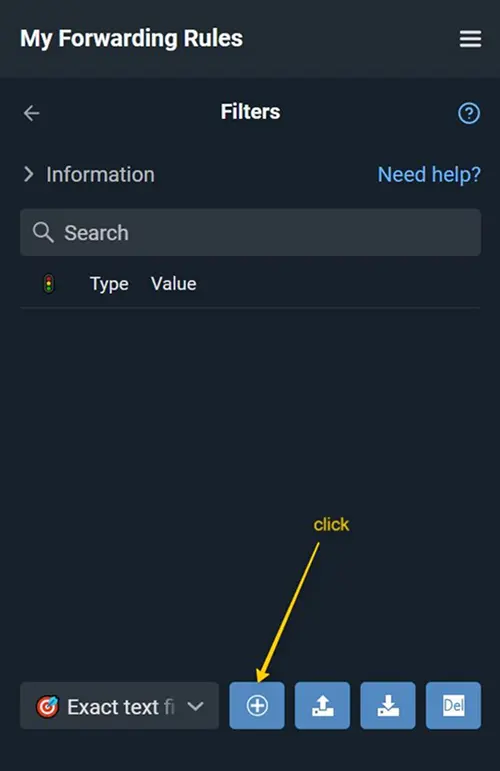
Click + to create a new filter. Select "Exact text" as the filter type.
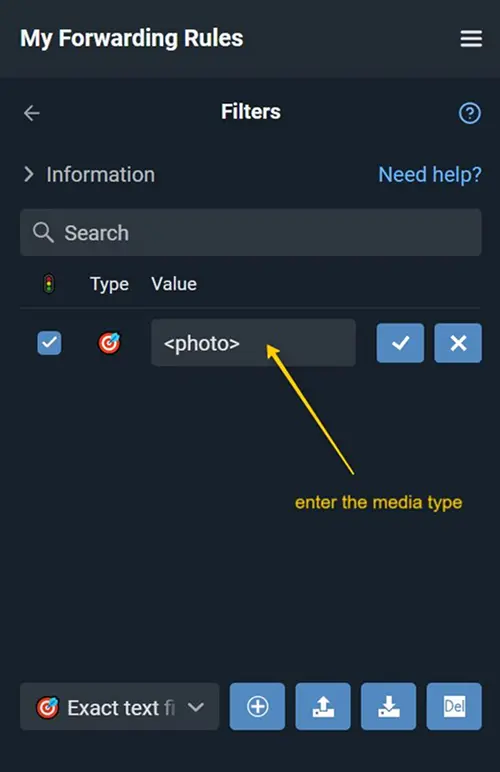
In the "Value" field, enter the media type you need:
<photo> - photos and images
<document> - file attachments
<audio> - audio and music
<video> - videos
<sticker> -stickers
<voice> - voice messages
<location> - geolocation tags
<animation> - GIF animation
<videonote> - video messages
<poll> - polls
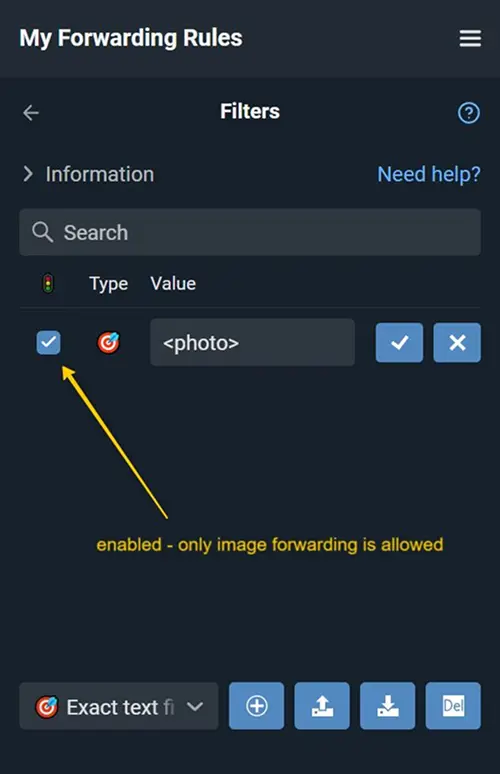
If the checkbox is enabled, an allowing filter will be created for messages with images. For example, no other messages will be sent to your channel, except for messages with photos.
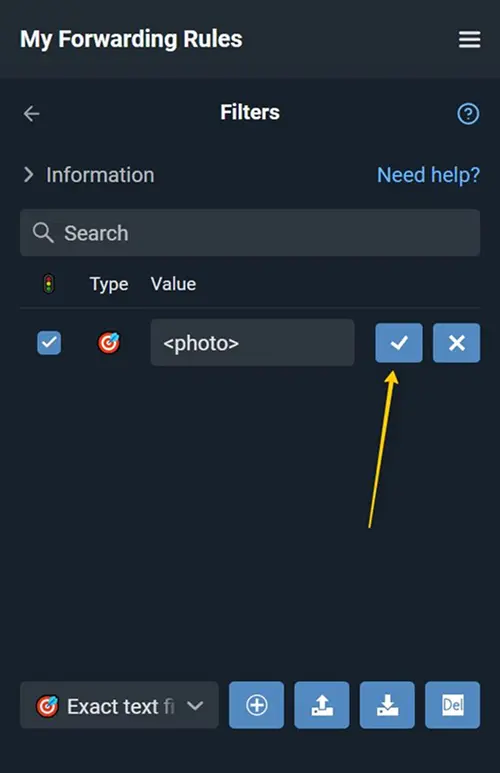
Save the filter.
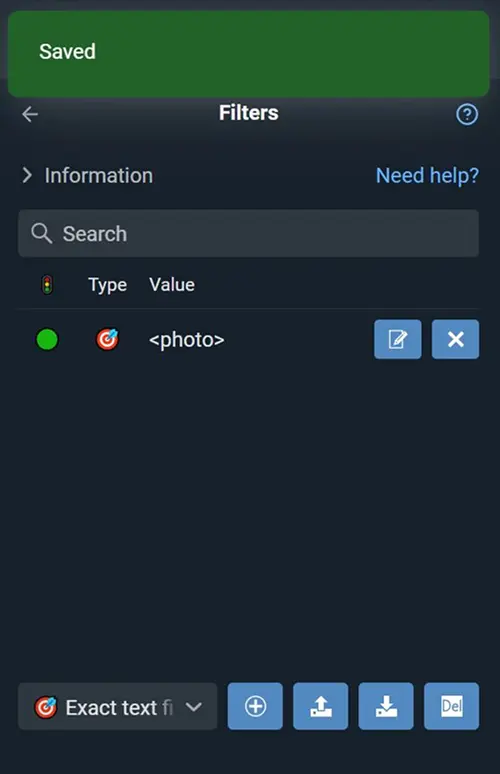
Done! Now only messages containing the selected media type (e.g. images) will be forwarded - with or without text. All other media types and text messages will be ignored.
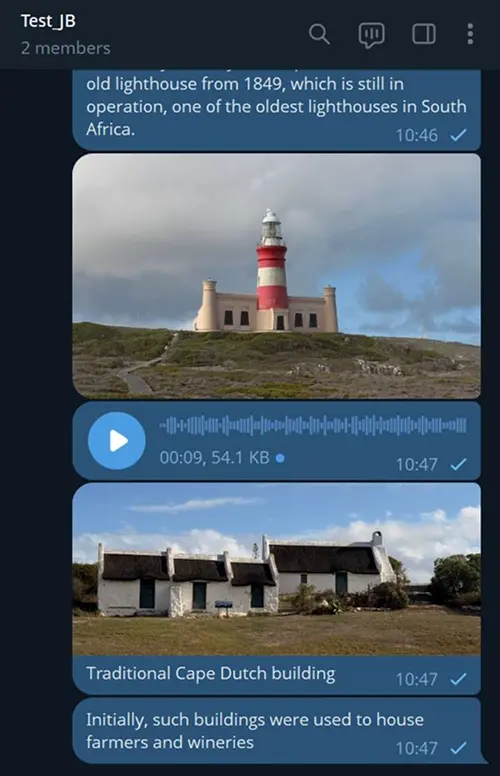
Example: the source received several messages with text and media.
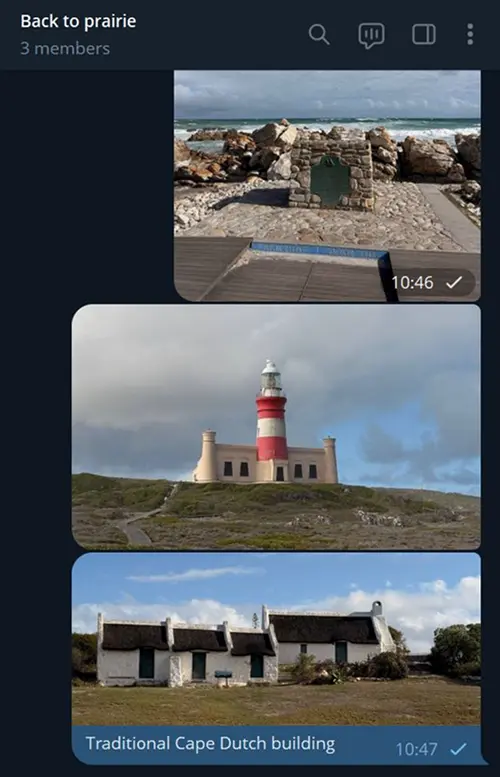
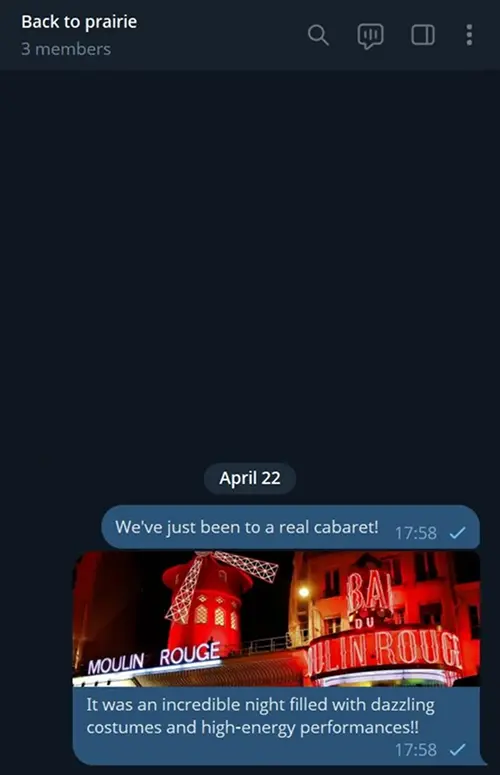
With the <photo> filter, only messages with images were sent to the destination.
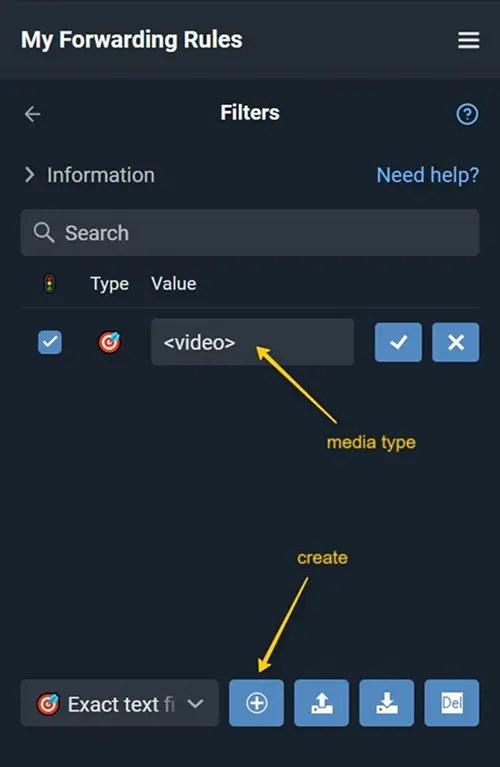
You can also exclude specific media types. Create another text filter and enter the media type (for example, <video>).
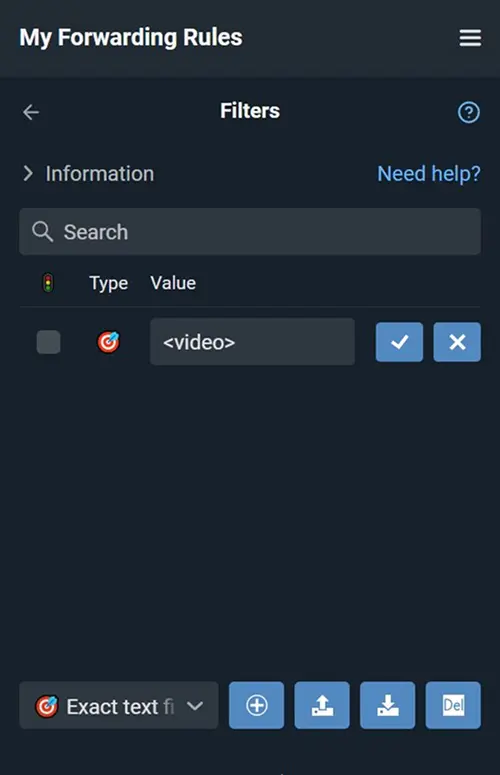
Disable the checkbox - this creates a blocking filter for videos.
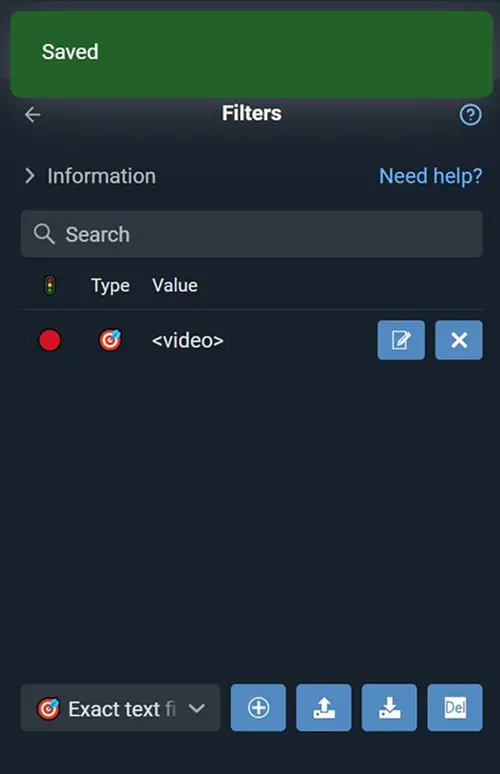
Don't forget to save the filter. Done! Messages containing videos won't be forwarded.
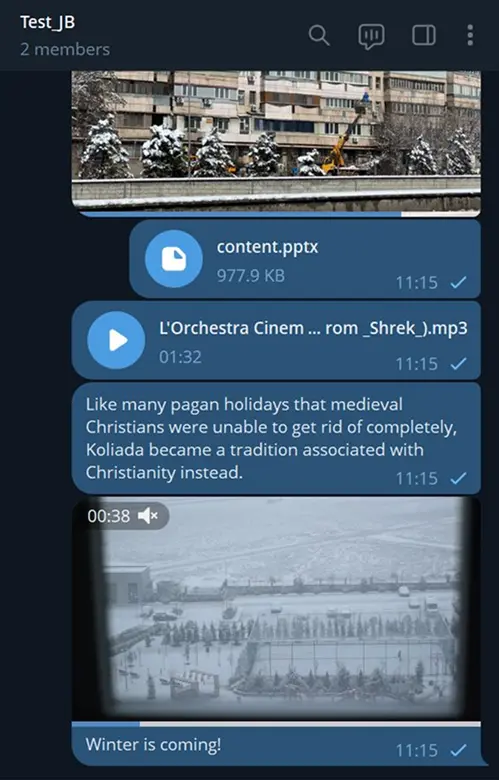
Example: the source receives some videos and other media messages.
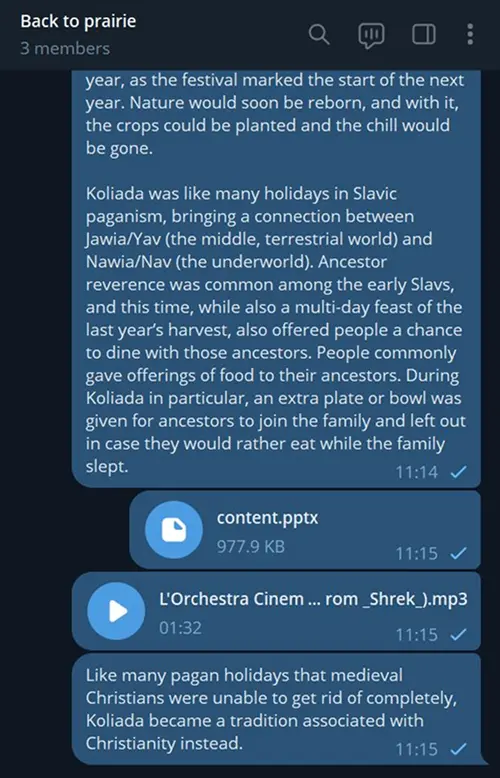
Only media and text messages without videos will reach the destination.